
How to set up an account
If you would like to set up an online account, please follow these simple steps:
To sign up for an online council tax account and e-bill, follow these steps:
1. Click on the MyAccount link - you can find this in the header of this website:

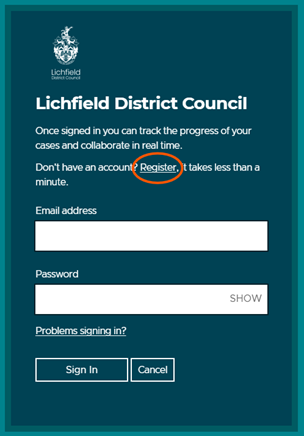
2. Then, on the login page that loads, select ‘Register’:
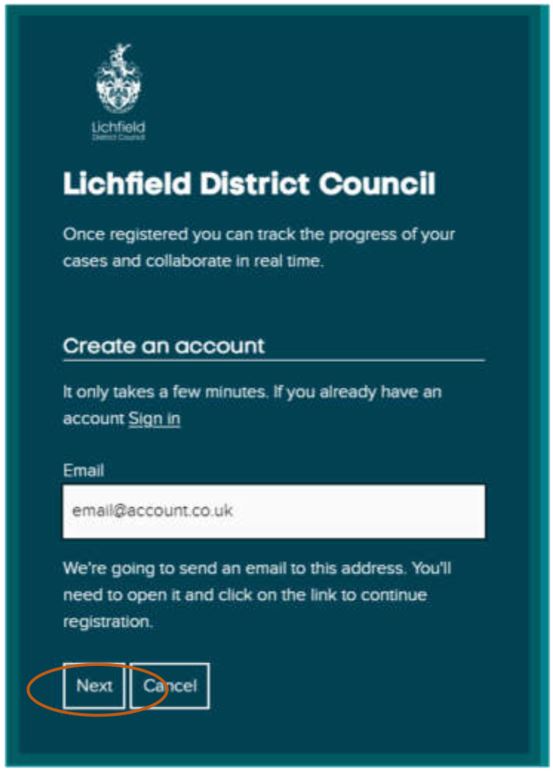
3. Enter your email address and click next:
4. You will then be shown the below screen that will confirm an email has been sent to your email account.
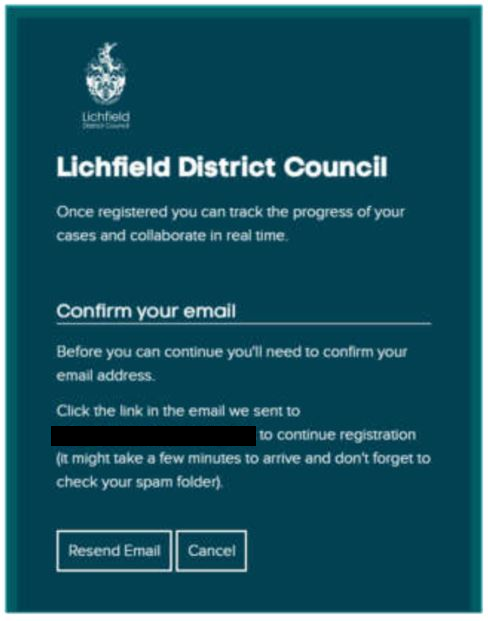
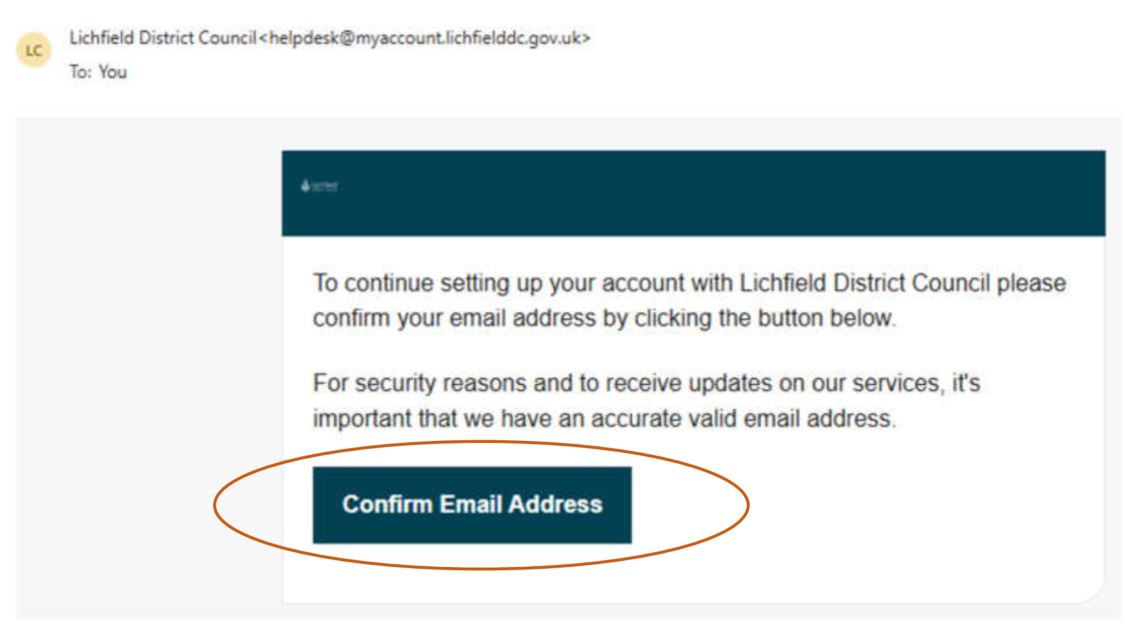
5. Select the ‘Confirm Email Address’ button in the email. The email is sent from helpdesk@lichfielddc.gov.uk. Please check your spam/junk folder if you haven’t received the email. If you still don’t have the email, select the ‘Resend Email’ button from the screenshot in the previous step:
6. Once you have confirmed your email address, you will be taken to a new page to enter your details and to create a password for your ‘My Account’:
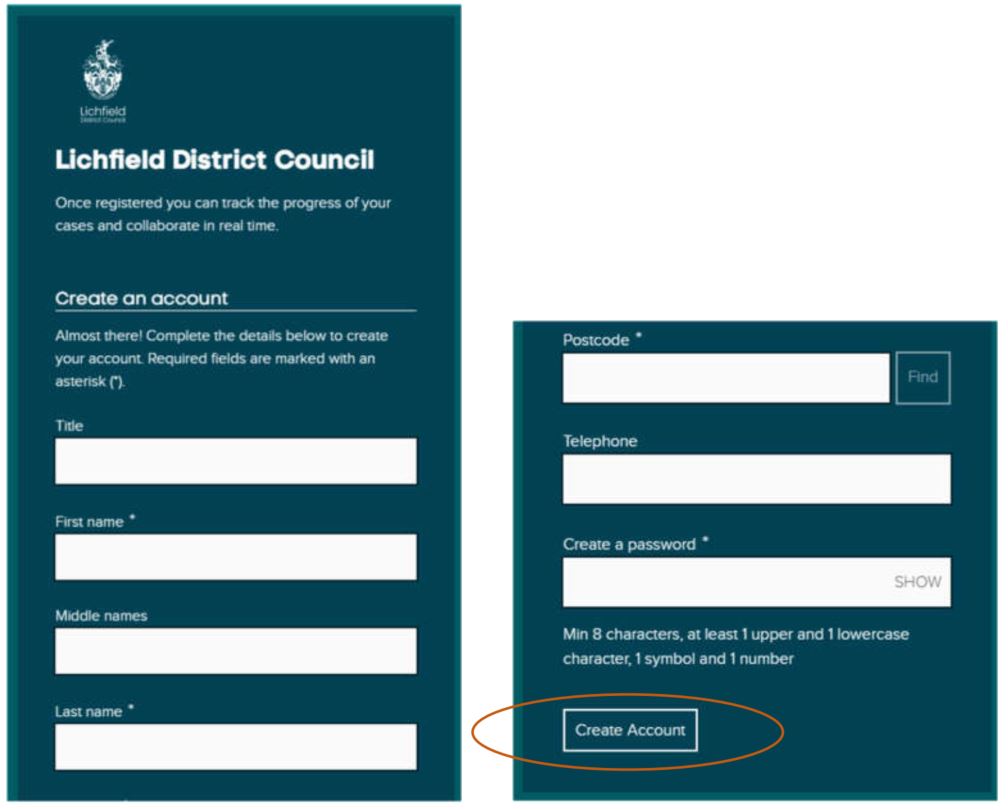
7. Once you have set up the account, select to sign in:
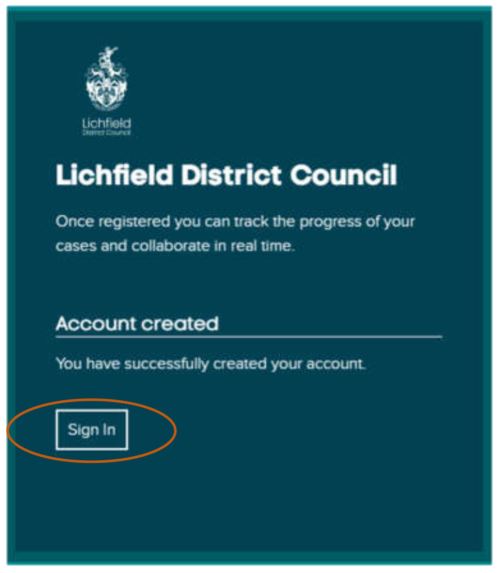
8. Enter the email address and password that you set up:
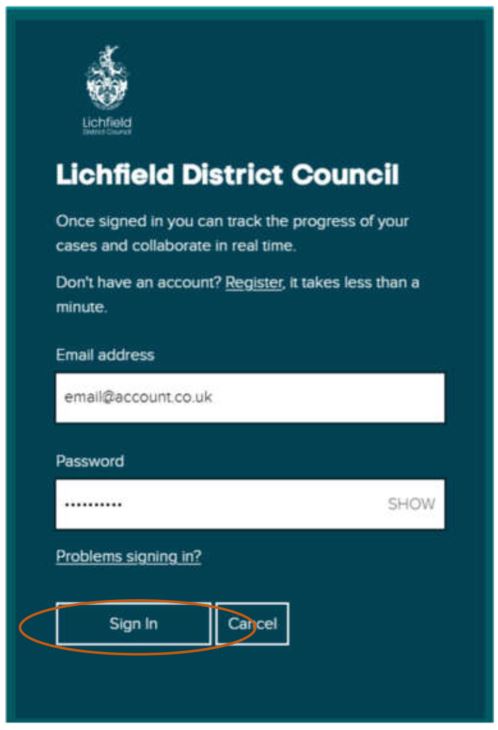
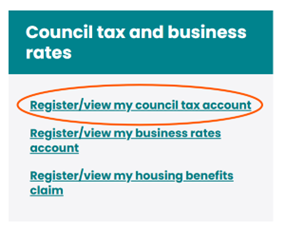
9. You will then be in your MyAccount. Scroll down to the ‘Council tax and business
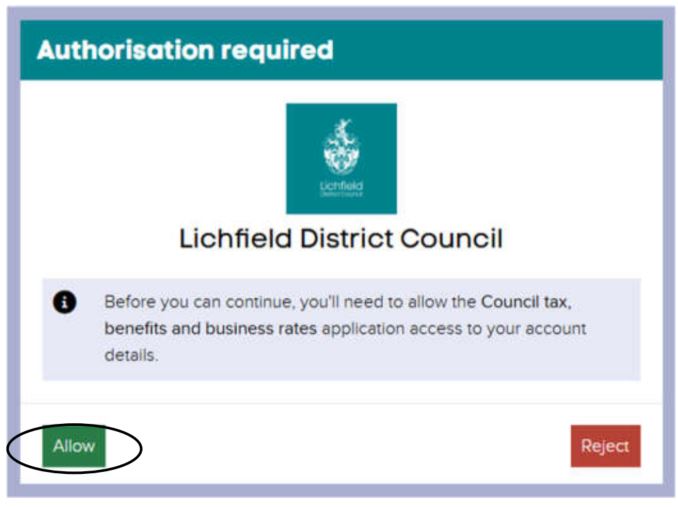
10. On the ‘Authorisation required’ screen, select ‘Allow’:
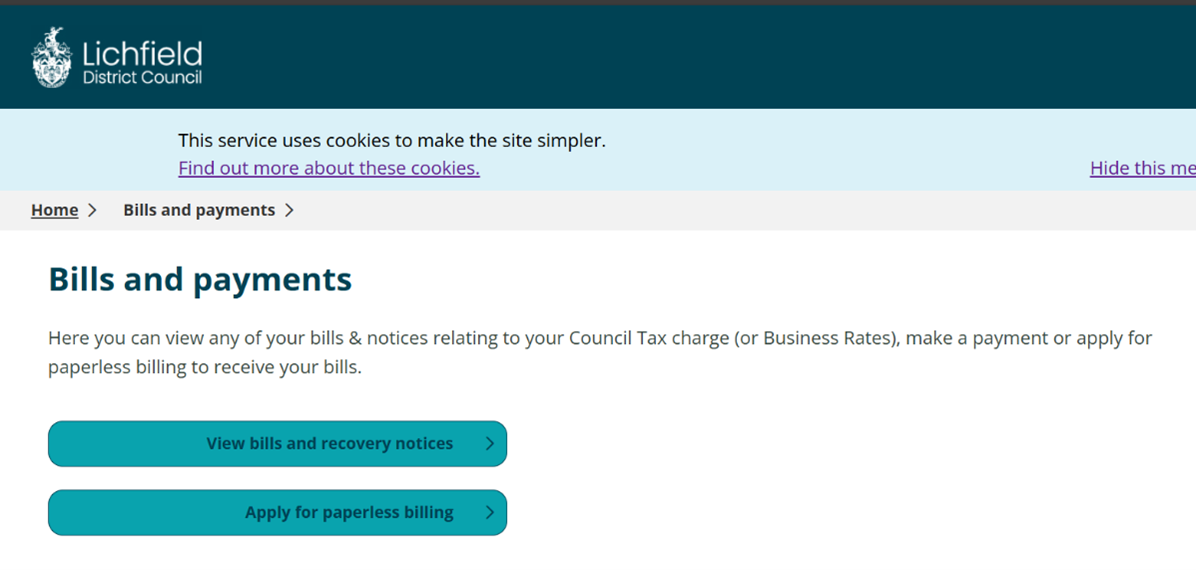
11. Once you have allowed access, you will then be asked if you want to view your bills or apply for paperless billing. Please make a selection:
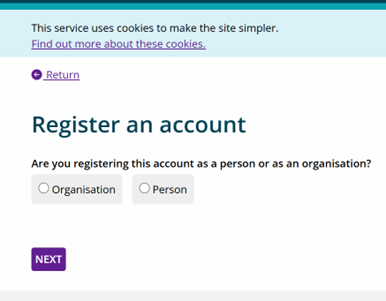
12. You will then be asked to register an account. On the first registration screen, please choose if you are a person or an organisation:
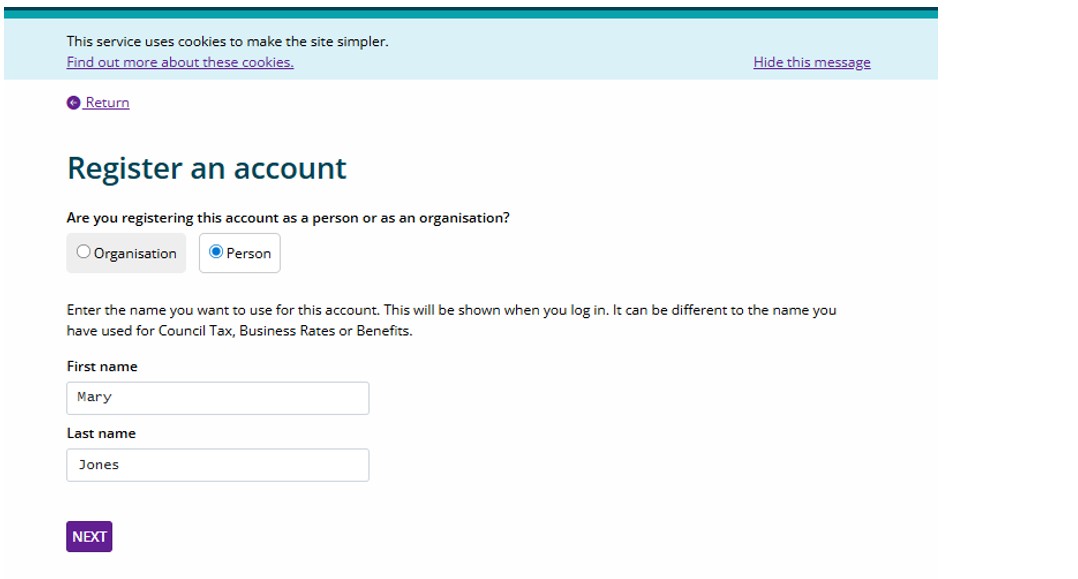
13. On the next screen, please enter your first and last name:
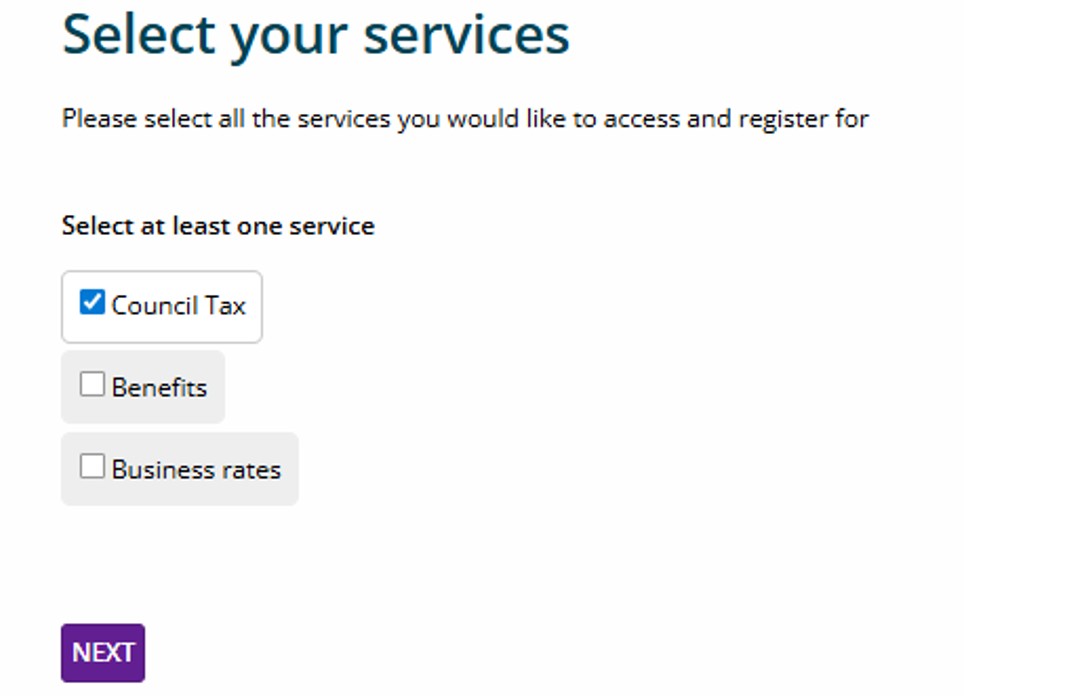
14. You will then be asked to select the services you would like to register for. You can always add additional services once you are registered:
15. You will then be asked to authenticate your council tax details. Please enter your first and last name exactly as we have on record for your council tax account:
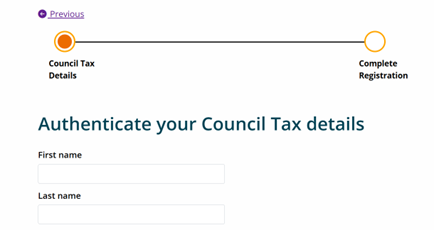
If there is any uncertainty about the name we have on record for you, please contact our customer services team.
16. Then enter your council tax account number and complete 2 identity checks. Please note the following guidelines:
- Only enter the first 10 digits of your council tax account number.
- Complete only 2 identity checks. If you complete all 4 with correct information, the system will still tell you the information is incorrect.
- Only use the bank account field option if you are already paying by direct debit.
- When entering your post code, please include the space and use capital letters, e.g. WS13 6YU
- The ‘Online reference’ is referred to as your ‘Key’ on your bill.
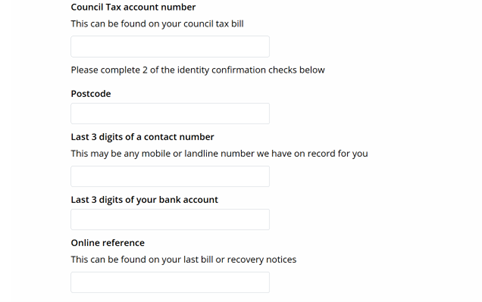
If you have followed the above guidelines, and the system is still telling you the information is incorrect, please contact our customer services team.
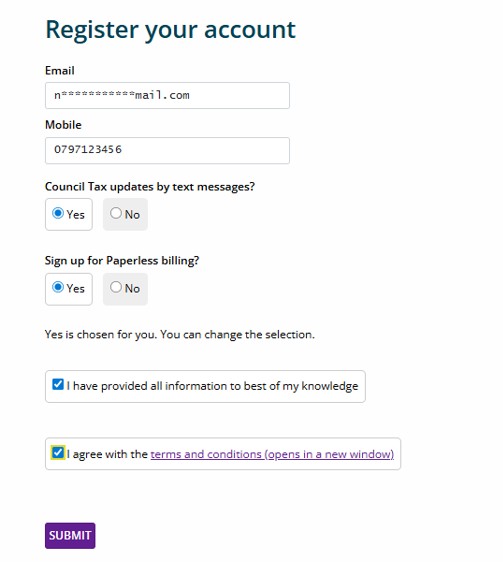
17. Once you have entered your information, select ‘Authenticate’, and you will be taken to the register page if the entered information was correct. Please enter any missing information and read the terms and conditions. You can then select ‘Submit’:
18. Your registration will then be complete. Please select ‘Continue’:
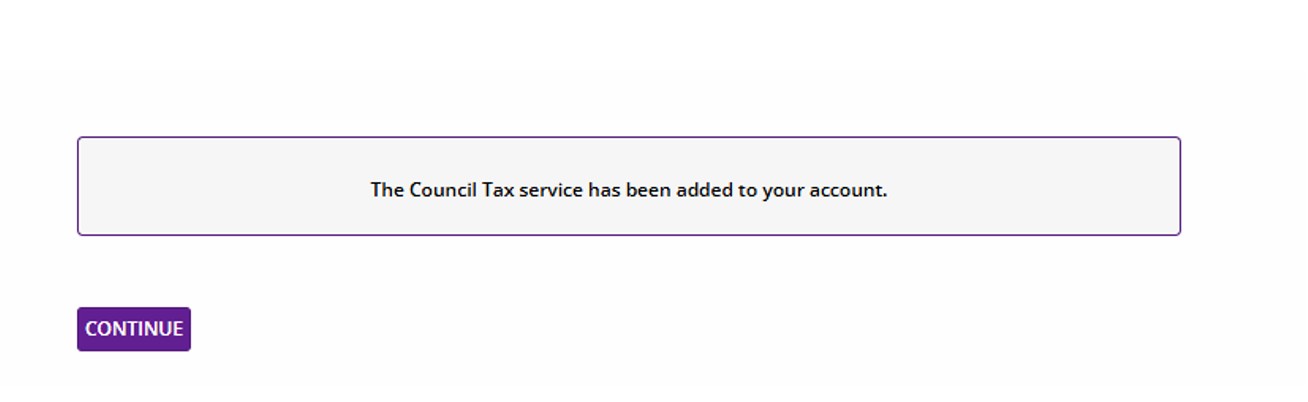
19. You will be then taken to your online council tax account.
Key information
- If you cannot use the password reset function in MyAccount, please contact our customer services team for support.
- If you have already linked an email address to a council tax account, but can't log in using that email/can't remember the email you use, you cannot set up another MyAccount and link it to the same council tax account. A council tax account can only be assigned to one email address. If you need support in this regards, please contact our customer services team.